
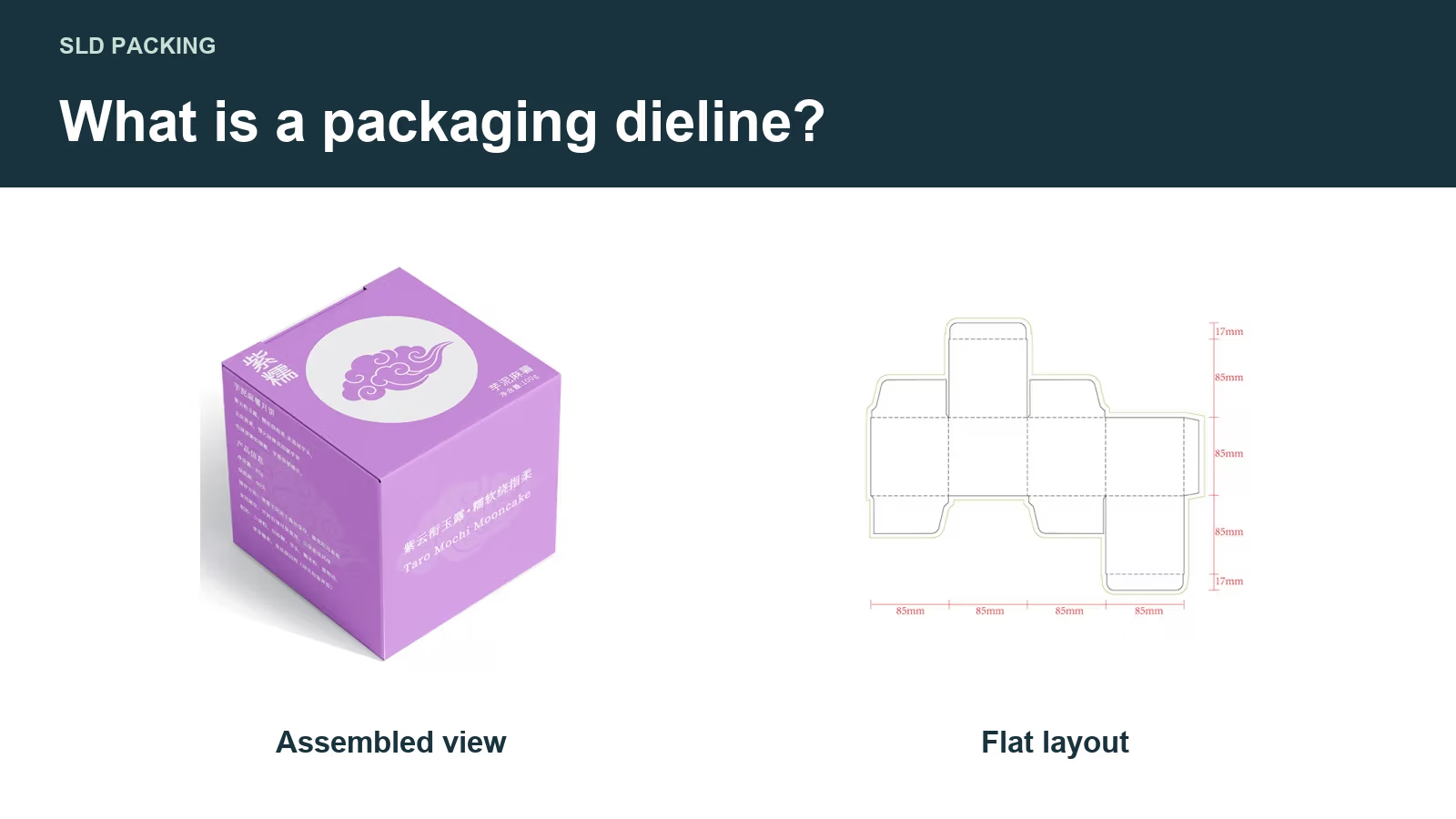
A packaging dieline is the flat technical drawing that shows where a box will be cut, creased and assembled. Your designer uses it to position the artwork; your manufacturer uses the approved structure to prepare the packaging for production. It is the bridge between a design on screen and a box that opens, closes and fits your product.
Before placing your logo, get the correct dieline for your box size, material and opening style. Confirm its scale, line legend, bleed and safety requirements. A good-looking 3D mockup is useful, but it cannot replace this file.
How to read a packaging dieline
Start with the shape of the blank: the piece of board before it becomes a box. Identify the main panels, then follow the flaps and tabs that close it. Finally, check where the board is joined. This makes the drawing much easier to understand than treating every line as a printing instruction.
The example below uses a tuck-end folding carton. Other structures can have separate sleeves, bases, lids or inserts, each needing its own drawing.
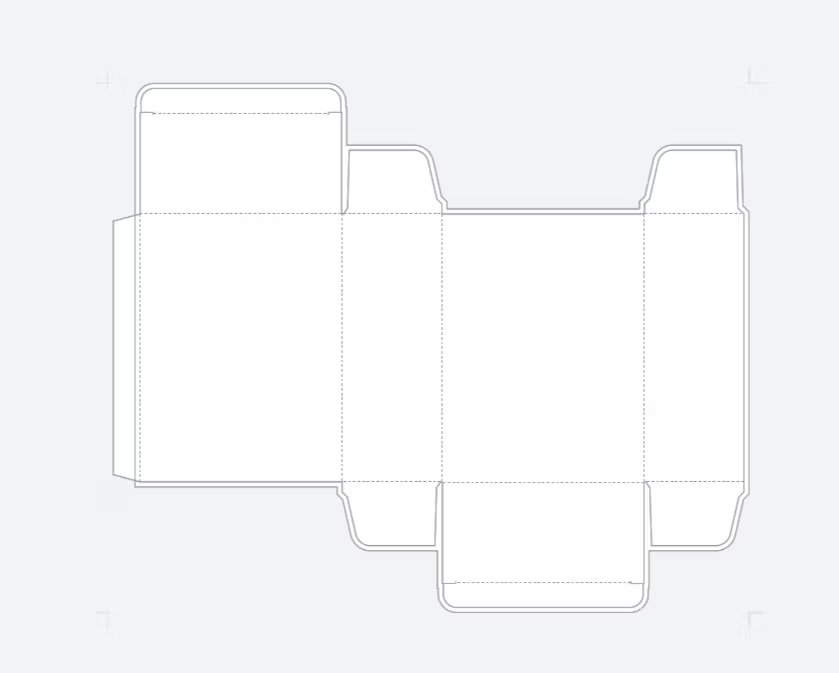
| Feature | What it means | What you need to check |
|---|---|---|
| Cut line | Where the board is cut, including openings and slots | Keep the approved shape; do not move it to make artwork fit. |
| Crease or fold line | Where the board is prepared to bend | Check panel orientation and keep critical details clear of the fold. |
| Glue flap or glue area | The joining surface that forms the carton | Confirm the area that must be kept free of ink, coating or other finishes. |
| Bleed | Background artwork extending beyond a cut edge | Extend the artwork itself, using the supplier’s required allowance. |
| Safe area | The inset area intended for important content | Keep logos, text and barcodes away from cuts, folds and other restricted zones. |
Bleed and safety guides help position artwork. They are not additional cuts in the board. Tuck tabs and dust flaps are structural parts of the carton; they are not spare panels to remove when they get in the way of a design.
Do line colors mean the same thing everywhere?
No. One supplier may show cutting paths in blue and creases in red; another may use different colors, dashed lines or named technical spot colors. Read the legend and layer names supplied with your actual template. Do not assume that a red line always means cut, or that every dashed line is a fold.
Perforation, partial cutting and V-grooving describe different operations. They should not be substituted for a crease simply because their line symbols look similar. If the drawing includes an unfamiliar operation, ask what it does before approving it.
Your artwork also needs to distinguish technical guides from printed design. A line used to make a cutting die is not automatically an ink that should appear on the finished box. Ask how the supplier wants technical paths supplied and separated from the printable artwork.
A dieline and a 3D mockup answer different questions
A dieline shows the flat layout: panel boundaries, flaps, joining areas and production paths. A 3D mockup helps you judge the assembled appearance: which face carries the logo, what a customer sees when opening the box, and how graphics wrap around it.
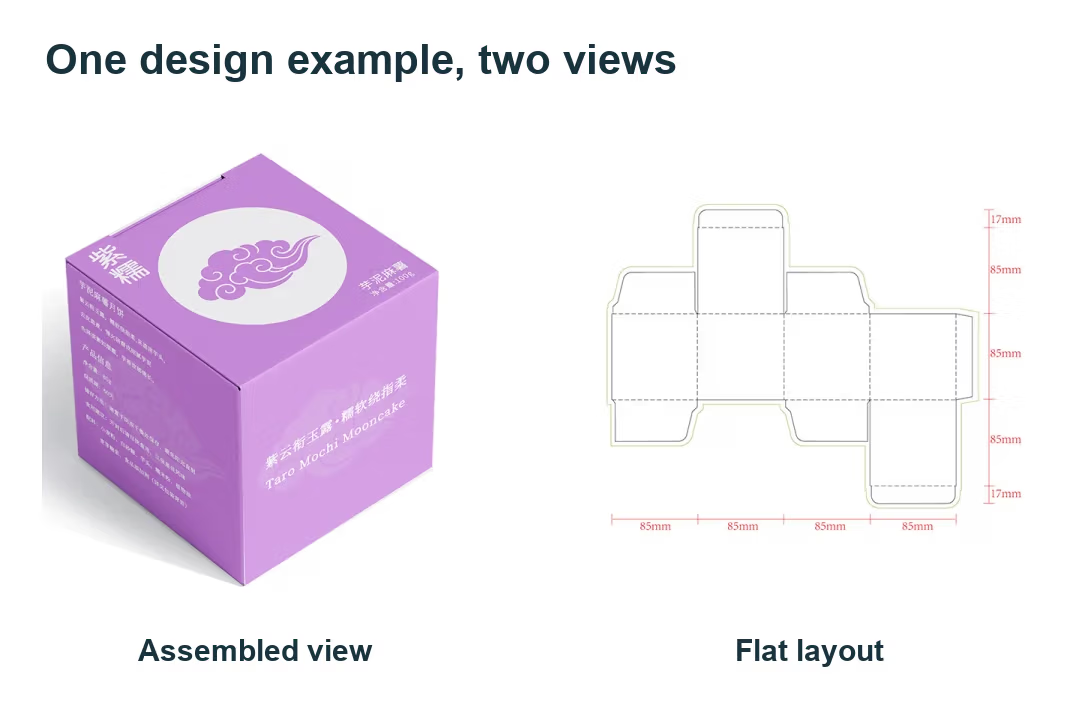
Use both during review. A flat design can look balanced while placing the back-panel copy upside down after folding. A render can hide a glue seam or show a lid closing without proving that the real product fits inside.
Before committing to production, check a physical structural sample with the intended products and inserts. Review artwork orientation separately. A screen render alone does not prove fit, board behavior, color or finish quality.
Bleed and safe area: two different jobs
Bleed carries background color or imagery past the cut edge. It helps prevent an unwanted white sliver if cutting and print registration vary slightly. Extending a guide without extending the background artwork does not create usable bleed. Adobe’s explanation of bleed makes this distinction clear.
The safe area keeps important content inward. A logo can be inside the cut line and still be uncomfortably close to an edge or fold. Barcodes, small type, foil details and embossed elements may need their own clearances rather than one shared margin.
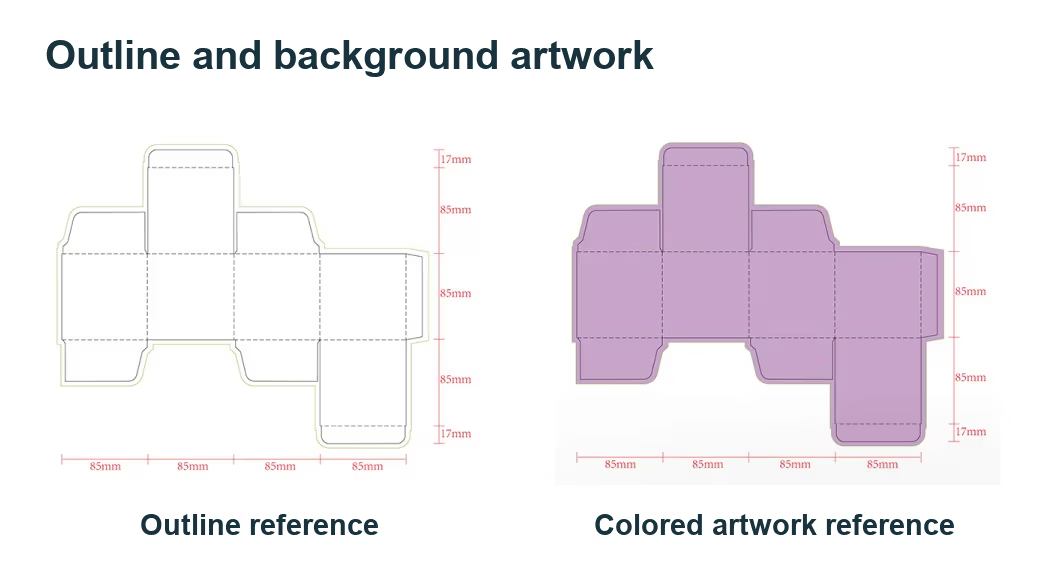
You may see 3 mm bleed specified on packaging templates. Treat that as a requirement of that template when confirmed, not a universal rule for every carton, mailer, rigid-box wrap or print process. Ask for the required bleed and minimum content clearances before finalizing the design.
Follow the shape of the required cut-edge bleed, not just the rectangular page boundary. Keep logos and essential information off glue areas and tucked-away flaps unless their placement has been deliberately approved. A fold is not a trim edge: artwork that crosses a fold needs a continuity and alignment check, not a new cut.
Get the structure right before adding artwork
For a custom folding carton, give the manufacturer the product’s dimensions, weight, orientation and any accessories or inserts. State whether dimensions refer to the product, the usable inside space or the finished outside box. Include units and make clear which direction is length, width and height.
Then confirm the proposed material and closure. Board thickness, fold allowances and joining details affect how the flat drawing becomes a finished box. A dieline taken from a visually similar box is a reference, not proof that it will work for your product.
Avoid stretching an old dieline to a new size. That can change tabs, slots and allowances along with the panels. If the size, material or structure changes, request a revised drawing and have the fit checked again. Place artwork on the latest approved revision, rather than quietly carrying on with an earlier template.
If you are still choosing the structure, SLD’s packaging design and production services provide a starting point for discussing the box style, inserts and finishes together.
Prepare the artwork for handoff
You do not need to become a prepress specialist to manage the handoff. You do need to give your designer and manufacturer the same current file and a clear approval record.
- Confirm the template identity. Record the box style, dimensions, material, units and revision. Verify that the drawing is at the requested 1:1 scale. Do not resize it to fit a page or an email preview.
- Keep technical paths separate. Preserve the supplier’s cutting and crease paths on their designated layer. Add artwork on separate layers. Do not flatten the entire job into a screenshot or redraw the approved structure in Photoshop.
- Check the printable faces. Confirm the front, back, sides, top, bottom and inside faces, including their reading direction. Mark any area that becomes hidden when tucked or glued.
- Apply the actual print requirements. Confirm the color workflow, bleed and clearances. Use the requested CMYK profile and/or named spot colors. Keep finishing instructions, such as foil or spot UV, on the separate layers or separations the supplier requests.
- Prepare fonts and linked images. Follow the requested font-embedding or outlining method, keeping an editable master. Supply linked assets when required. Check image resolution at final placed size; changing a resolution label does not restore missing detail.
- Export the agreed production file. Use the supplier’s requested editable vector and/or print-PDF format and preset. A PDF filename alone does not prove the contents are vector, correctly scaled or ready to print. Keep technical lines available for production while ensuring they do not become unintended printed ink.
- Reopen and review the export. Check its scale, panels, bleed, fonts, images and finishing separations. If technical spot colors use overprint, confirm those settings with prepress. Adobe’s overprint guidance recommends reviewing the effect rather than relying on the normal screen view.
Overprint does not make a technical line non-printing; prepress must identify and exclude the technical separation from the print output. Do not turn overprint on for every object as a general fix.
Send a clearly labeled viewing proof alongside the production artwork if it helps explain the intended appearance. Keep it identifiable as a proof so a convenient JPG does not accidentally become the file used for manufacture.
Before you approve: six final checks
- The file and approval email identify the same revision, size, units and material.
- The main product, accessories and insert have been checked in the proposed structure.
- Text reads correctly after assembly, including the top and bottom flaps.
- Backgrounds reach the required bleed, while essential content clears cuts, folds and restricted areas.
- Glue zones and finish boundaries follow the supplier’s instructions; technical paths are handled separately from printed ink.
- Changes after proof or sample approval are recorded and sent back for review before production proceeds.
A quick paper fold-up can help catch upside-down text or an unexpected panel position. It cannot validate the strength or fit of production board. Use it for orientation, then confirm the actual structure with the appropriate sample.
Need a dieline for your packaging project?
SLD provides free packaging dieline drawings. Contact SLD for free dieline support and send your product dimensions, weight, quantity, preferred box style and any insert or finishing requirements. Include a photo or sketch if you have one.
If the structure is not settled yet, start with the product details. That gives us a useful basis for discussing the box and preparing the dieline before you invest time placing the artwork.